
How to Speed Up WordPress on Free Hosting
Learn how to speed up WordPress on free hosting with caching, image optimization, plugin cleanup, and practical performance improvements.
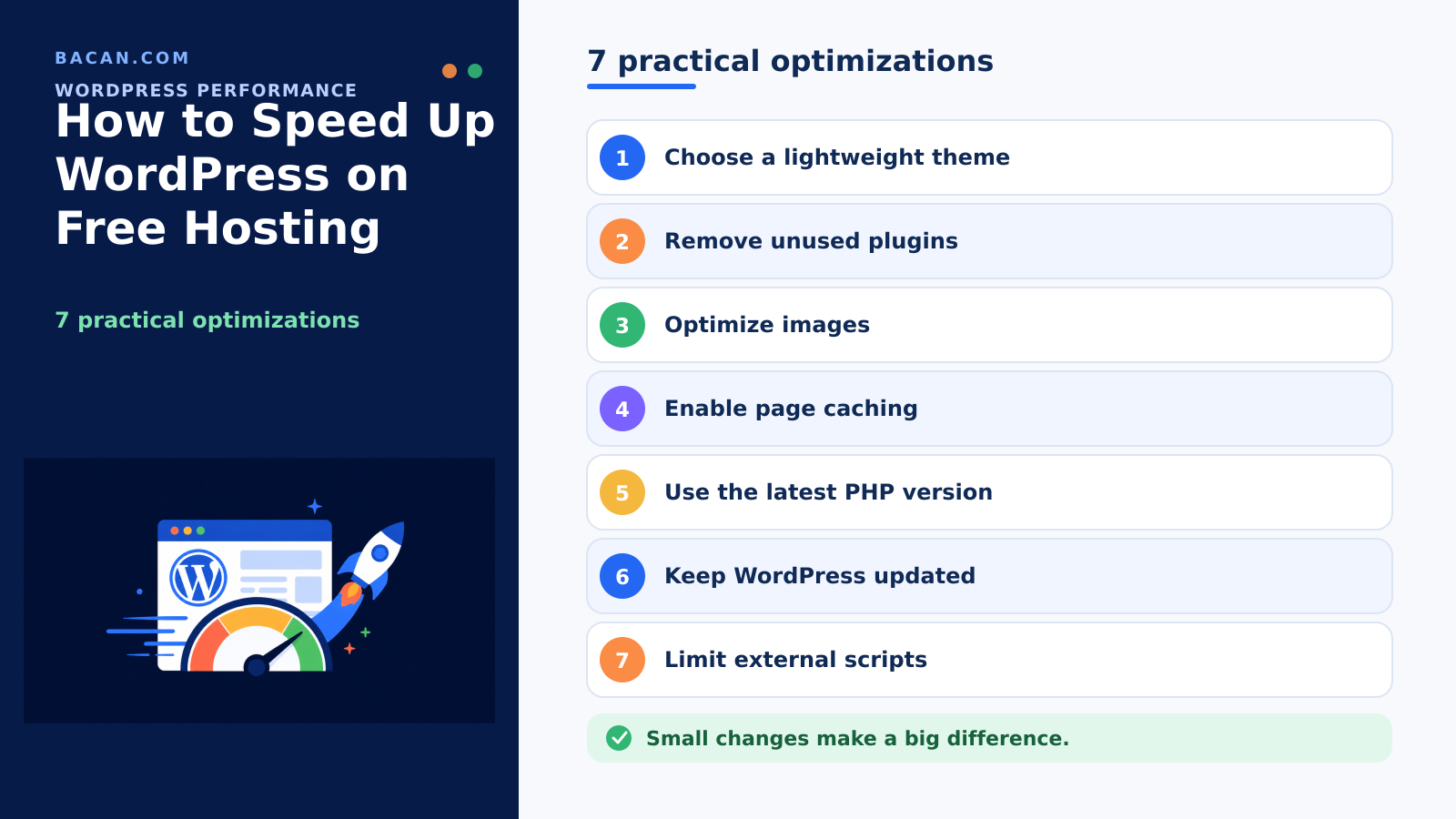
How to Speed Up WordPress on Free Hosting
A slow WordPress website does not automatically mean that you need to move to a paid hosting plan. On free hosting, server resources may be more limited, but many performance problems come from the website itself: oversized images, unnecessary plugins, heavy themes, excessive scripts, or a lack of caching.
If you want to speed up WordPress on free hosting, start by reducing the amount of work required to display each page. This is usually more effective than installing several optimization plugins and hoping that they solve the problem automatically.
The objective is simple: make WordPress use the resources available to it as efficiently as possible. Measure the site before and after each important change, and make a backup before any change that could affect content or configuration.
Why WordPress Can Be Slow on Free Hosting
WordPress generates pages dynamically. When someone requests a page, WordPress may need to run PHP code, load configuration data, query the database, execute plugins, process the active theme, and assemble the final HTML response. Every additional operation requires server resources.
Common causes include:
- Large, unoptimized images.
- Too many active plugins or a single resource-intensive plugin.
- A complex theme or page builder.
- No effective page caching.
- Large amounts of third-party JavaScript.
- Database clutter and unnecessary background tasks.
- Outdated or poorly maintained software.
The good news is that you can address many of these problems without changing hosting providers.
1. Measure Your Website Before Optimizing It
Do not make ten changes at once. Test your homepage, a normal post or page, and any page that uses extra plugins or a complex layout. Also check whether the site is always slow or only slow during particular actions.
WordPress includes a Site Health screen that can identify configuration and technical issues. Record your initial results so you can compare them after each important change. This helps you distinguish a genuine improvement from a temporary difference in network conditions.
2. Enable Page Caching When Available
Caching is one of the most effective WordPress performance improvements. Without page caching, WordPress may generate the same page repeatedly for different visitors. A page cache stores a previously generated version so it can often be delivered without repeating all of that work.
Caching may be provided by the hosting server, by a WordPress plugin, or by another caching layer. If you use a plugin, keep its configuration simple at first. Do not install several page caching plugins simultaneously: overlapping cache, minification, or optimization features can create conflicts.
After enabling caching, test the site again and remember that cached pages may temporarily show an older version after a change.
3. Remove Plugins You Do Not Need
A plugin can add PHP code, database queries, scripts, stylesheets, scheduled tasks, and external requests. Plugin count alone does not determine performance, but unused plugins provide no benefit and still increase maintenance and security work.
Review the plugin list and ask:
- Do I still use this feature?
- Does WordPress or the theme already provide it?
- Is another plugin duplicating the same function?
- Does it load assets on pages where they are unnecessary?
- Is it actively maintained?
Deactivate and remove plugins you no longer need. Before removing an important plugin, make a backup and check whether it stores data or functionality that the site depends on.
4. Use a Lightweight WordPress Theme
Some themes include sliders, animations, multiple font libraries, icon sets, page-building features, and large JavaScript bundles even when a site uses only a small part of them.
For a portfolio, student website, personal blog, or simple business site on free hosting, choose a theme that provides the layout you actually need, works well with the block editor, does not depend on many extra plugins, receives regular maintenance, and performs well without extensive optimization.
The simplest solution is often to remove unnecessary complexity rather than compensate for it later with more tools.
5. Optimize Images Before Uploading Them
Images are frequently among the largest files on a webpage. Uploading a 4,000-pixel photograph when it will appear at 800 pixels wide wastes bandwidth and storage.
Before uploading an image:
- Resize it to dimensions appropriate for the page.
- Compress it to reduce its file size.
- Choose an appropriate format.
- Avoid using a photograph where a simple graphic would work.
- Check the visual quality instead of always choosing maximum quality.
WordPress can generate multiple image sizes and provides basic editing tools. Image optimization is particularly valuable on free hosting because it reduces page weight without requiring server configuration changes.
6. Limit Third-Party Scripts
Analytics, advertising, chat widgets, social feeds, embedded videos, external fonts, tracking pixels, and other services can add network requests and JavaScript that the visitor’s browser must process. A page can feel slow even when the server returns the initial HTML quickly.
Review every external service and ask whether it provides enough value to justify its performance cost. A simple portfolio may not need several analytics platforms, an unmonitored live-chat system, multiple social widgets, many external font families, or complex marketing scripts.
Removing an unnecessary third-party script can sometimes help more than adding another optimization plugin.
7. Be Careful With Page Builders and Visual Effects
Page builders can make design easier, but elaborate layouts may introduce additional HTML, CSS, JavaScript, and plugin dependencies. This does not mean that every page builder is unsuitable; use its features deliberately.
A page with one clear heading, optimized images, readable text, and a simple call to action usually needs fewer resources than a page with several sliders, animated counters, video backgrounds, pop-ups, and complex interactions. On resource-limited hosting, simplicity is a performance strategy.
8. Keep WordPress, Themes, and Plugins Maintained
Updates are important for security, compatibility, and ongoing improvements. WordPress core has received performance improvements over time, including changes related to script loading, templates, and internal data handling.
Before a significant update, make sure you have an appropriate backup. Remove themes and plugins that you no longer need instead of leaving abandoned software in the installation indefinitely. Maintenance will not automatically make every site fast, but outdated software makes troubleshooting and optimization more difficult.
9. Review the Database Without Risky Changes
WordPress stores posts, pages, settings, plugin information, and other data in its database. Plugins and themes can leave configuration data behind as a site changes. WordPress Site Health also monitors autoloaded options because too much automatically loaded configuration can affect performance.
Be careful with database optimization. Do not delete tables or options manually simply because a tutorial says they are unnecessary; an unfamiliar table may still be required by a plugin or theme.
Before cleanup:
- Create a backup.
- Identify exactly what will be removed.
- Use established WordPress tools where possible.
- Avoid deleting data you cannot restore.
- Test the site afterward.
For a small installation, removing unnecessary plugins and simplifying the site is normally a better first step than aggressive database modification.
10. Watch Background Tasks
WordPress uses WP-Cron to schedule activities such as publishing scheduled posts and allowing plugins to perform background work. Scheduled events normally run when the site receives a visit after an event becomes due.
Most beginners should not disable or modify WP-Cron without understanding the consequences. If the site has unexplained background activity, investigate whether a plugin is scheduling unusually frequent tasks. Replacing WP-Cron with a server-level scheduler can be useful in some environments, but it is an advanced option and may not be available on free hosting.
11. Avoid Installing Every Optimization Plugin
A slow site often leads to plugins for caching, image optimization, CSS and JavaScript optimization, database cleanup, lazy loading, asset management, and monitoring. Eventually, the optimization system itself becomes complicated.
Start with the changes that have the clearest benefit: remove what you do not need, optimize large files, enable suitable caching, and simplify expensive pages. Add another performance plugin only when you can explain the specific problem it solves. This also makes troubleshooting easier because you can identify which change caused a regression.
12. Check Whether Your Changes Worked
After each significant optimization, test the same pages you measured at the beginning. Check whether pages display sooner, large images load faster, navigation feels more responsive, the WordPress administration area remains usable, and forms, menus, galleries, and other interactive features still work.
Test logged-in and logged-out views when possible because caching behavior may differ. The goal is not simply a better performance score: the website should feel faster to real visitors without losing required functionality.
When Free Hosting Is Enough for WordPress
A carefully optimized WordPress installation can be appropriate for learning WordPress, student projects, personal websites, small portfolios, development experiments, demonstrations, prototypes, and simple informational sites.
These projects benefit from keeping WordPress lightweight. Free hosting can provide a practical environment for learning how themes, plugins, databases, caching, and publishing work without immediately committing to a paid service.
When Optimization Is Not Enough
Optimization cannot create unlimited server resources. A site may eventually need a more capable environment if it develops consistently high traffic, a large or heavily queried database, resource-intensive plugins, complex e-commerce functionality, many simultaneous users, critical business operations, advanced server requirements, or a need for guaranteed resources.
The right question is not only “Can I make WordPress run here?” but also “Does this hosting environment still match what the website needs?” If legitimate requirements exceed the environment after sensible optimization, moving to a more capable service may be appropriate.
Frequently Asked Questions
Can WordPress run fast on free hosting?
It can perform well enough for many small websites, learning projects, portfolios, and tests if the installation is kept lightweight. Performance depends on both the website configuration and the resources provided by the hosting environment.
What is the easiest way to speed up WordPress?
Start with caching, image optimization, and removing unnecessary plugins. These changes address common sources of unnecessary server processing and page weight.
Do too many plugins make WordPress slow?
They can, but plugin count alone is not a reliable measurement. What matters is the work each plugin performs. One resource-intensive plugin may cause more problems than several lightweight ones.
Should I use more than one caching plugin?
Usually not for the same caching function. Multiple plugins attempting to control page caching or the same optimization process can conflict. Use the simplest configuration that solves the problem.
Can a theme make WordPress slower?
Yes. Themes can add scripts, styles, fonts, animations, and other resources. A lightweight theme with only the features your website needs is generally easier to run efficiently on limited resources.
Should I upgrade hosting if WordPress is slow?
Not immediately. First check for large images, unnecessary plugins, a heavy theme, missing caching, excessive external scripts, and other website-level problems. Upgrade when the site is already well optimized and its legitimate requirements exceed the hosting environment.
Final Recommendation
The most effective way to speed up WordPress on free hosting is usually to make the website lighter before trying to make the server work harder.
Use caching where available, optimize images, remove unnecessary plugins, choose a lightweight theme, limit third-party scripts, and measure the effect of each change. Make backups before database cleanup or other potentially destructive work.
For learning WordPress, building a portfolio, testing an idea, or publishing a simple website, a well-optimized installation can be a good match for free hosting. If the project grows into a high-traffic, resource-intensive, or business-critical website, evaluate whether a more capable hosting environment would better support it.